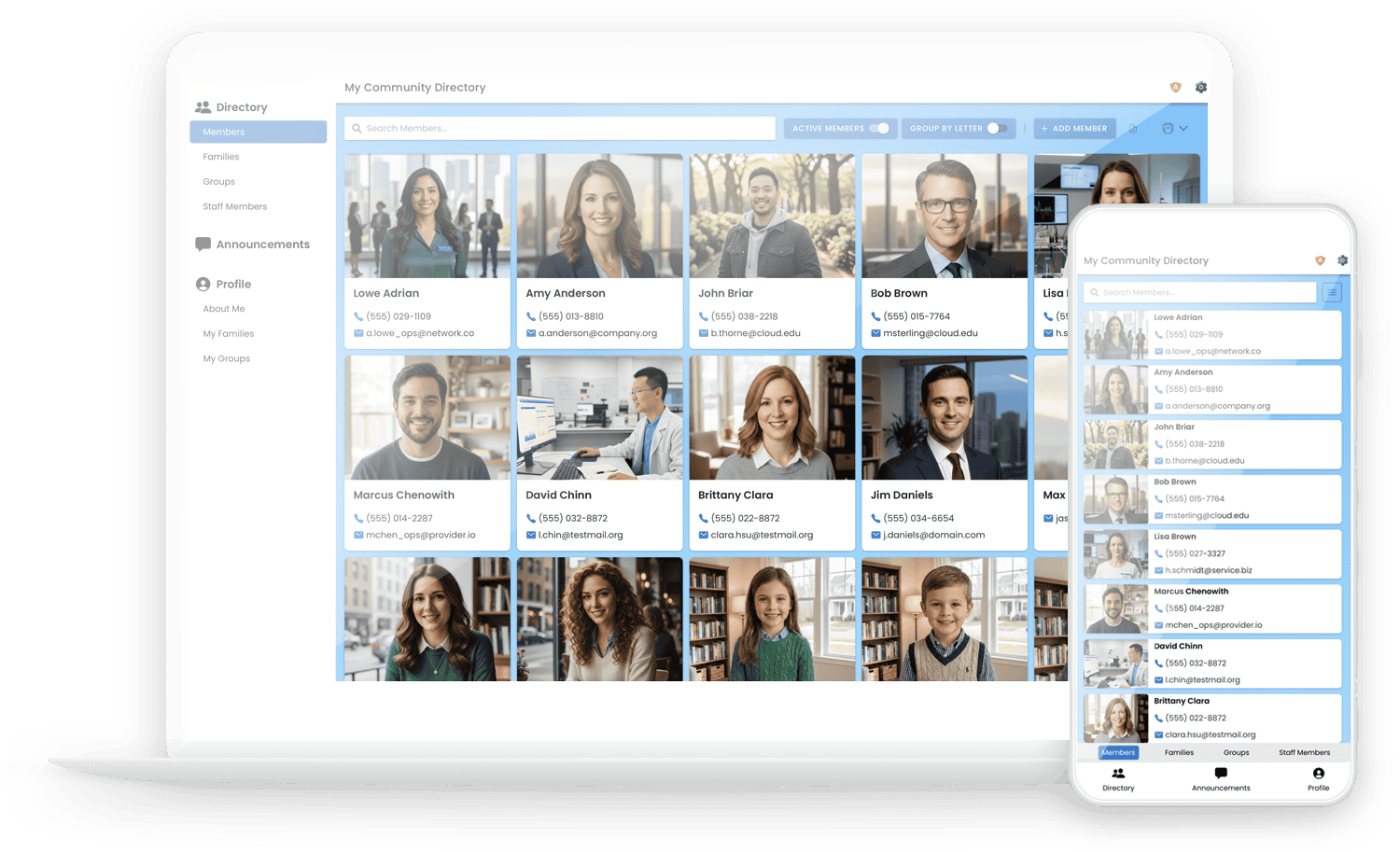
Access Code Login: How It Works
The Access Code is designed to be the “fast lane” for viewing your directory. It removes the barrier of individual passwords while keeping your data under your control.
-
Admin-Managed Setup: The Directory Admin still handles all the “heavy lifting.” You add the members, upload their photos, and organize their profiles just like you always have. The access code doesn’t change how your data is stored; it only changes how it is accessed.
-
View-Only Access: This login method is strictly Read-Only. It allows members to look up phone numbers, addresses, and photos quickly. To keep your directory data accurate and secure, users cannot make any changes while logged in with an access code.
Need to Edit? If a member notices their information is incorrect, they have two simple options:
- Contact the Admin: They can ask you to update the info for them.
- Full Login: They can choose to log in with their Email and Password. This traditional method is still available and is required for any member who wants to edit their own profile or manage their account details.
Essentially, the Access Code is for convenience, while the Email/Password login remains the tool for account management.
Follow these steps to enable this feature for your organization:
Step-by-Step Instructions
- Log In: Sign in to your Admin account.
- Go to Settings: Click the Gear Icon in the upper right-hand corner.
- Navigate to Directory: Click on the Directory tab within the Settings menu.
- Click on Shared Access Code (near the bottom of the menu.)
- Accept Terms: Read and accept the Terms of Use. You must check this box to enable the feature.
- Set Your Code: Enter your chosen code and save.
Note: The system will automatically convert your code to ALL CAPS. It is not case-sensitive, so members can type it in however they like and it will work!
Maintaining a Secure Directory
To keep your members’ information safe, we recommend following these best practices for managing your access code:
-
Update Periodically: Consider changing your access code every 6 to 12 months. Since members may leave your organization over time, updating the code ensures that only current members have access.
-
Emergency Updates: If you suspect the code has been leaked to an outsider or someone who shouldn’t have it, change it immediately. * Instant Session Termination: The moment you update your code, all active sessions using the old code are terminated. Users will be logged out and must enter the new code to regain access.
-
Disable Anytime: If you decide this login method isn’t right for your group, Admins can completely disable the feature at any time using the toggle in the settings menu.
Choosing a Secure Code
Avoid simple patterns like 123456. Since special characters are not allowed, use a strong mix of letters and numbers.